Google Docs Update Action
Overview
This guide demonstrates how to create an execution action that enables Glean Assistant to update Google Documents. You'll learn how to configure the OpenAPI specification, set up OAuth authentication, and deploy the action for use within your organization.
This is an execution action that performs operations directly within Glean by making API calls to Google Docs on behalf of users.
Prerequisites
Before proceeding, ensure you have:
- Admin or app developer access to Glean
- Access to Google Cloud Console
- Familiarity with OAuth 2.0 authentication flows
Implementation Guide
Basic Configuration
Navigate to Admin console > Platform > Actions and create a new action from scratch.
Basic Information Configuration
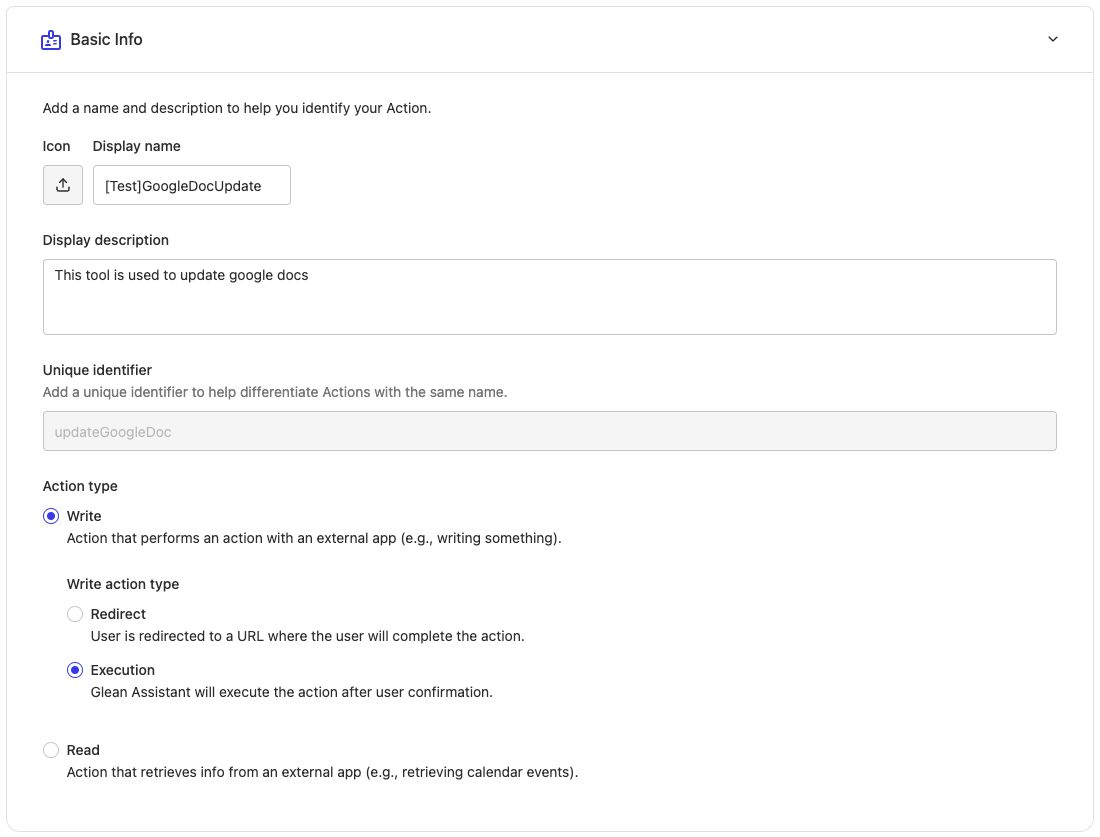
Configure the following settings:
- Display name: Choose a descriptive name (e.g., "Google Docs Updater")
- Description: Explain the action's functionality
- Unique identifier: Set a unique ID (e.g., "googleDocsUpdate")
- Action type: Select "Action" since this will modify documents
Trigger Condition Setup
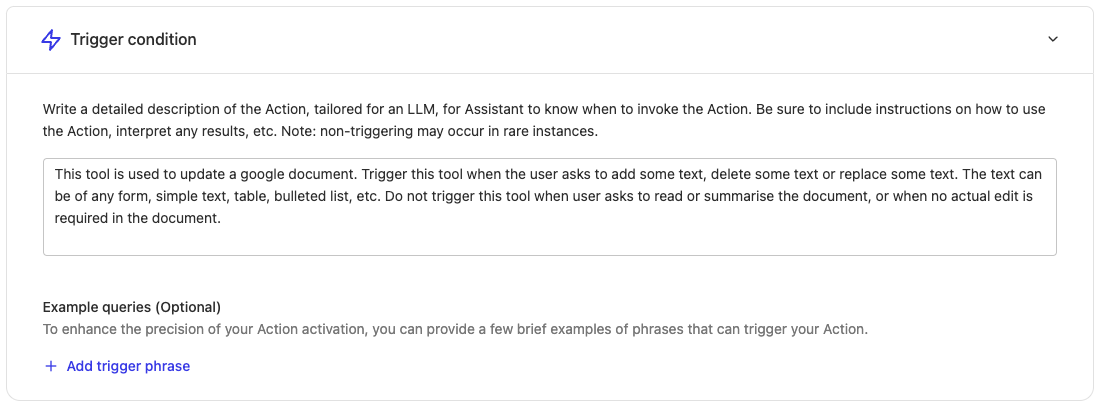
In the trigger condition, provide comprehensive guidance for when Glean Assistant should use this action. Include:
- Specific use cases that should trigger the action
- Examples of appropriate user queries
- Cases where the action should not be used
API Specification Development
The first step involves creating a properly formatted OpenAPI specification that defines how Glean Assistant will interact with the Google Docs API. We'll use the following endpoint:
POST https://docs.googleapis.com/v1/documents/{`{documentId}`}:batchUpdateWhile Google doesn't typically provide OpenAPI specs publicly, you can construct one using their documentation or reference third-party sources.
Here's the complete OpenAPI specification:Click to expand the full OpenAPI specification
Functionality Configuration
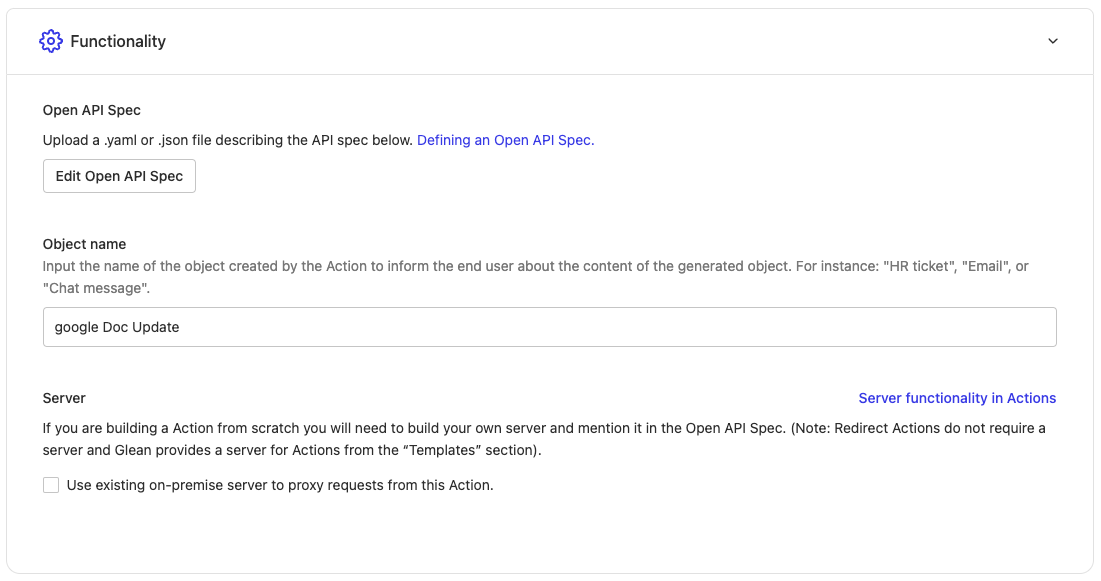
Paste the OpenAPI specification you prepared above. Since we're using Google's API directly, leave the "Use existing on-premise server" option unchecked.
Authentication Setup
This action requires OAuth User authentication to access individual users' calendar data.
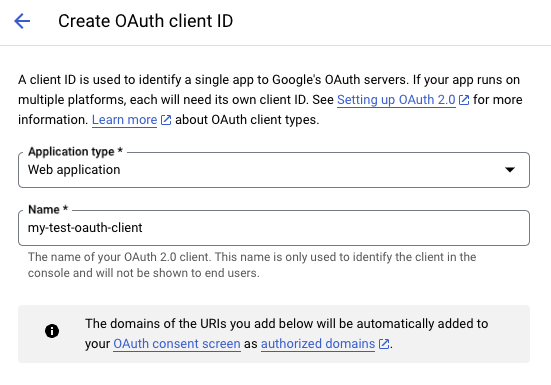
Google Cloud Console Setup
-
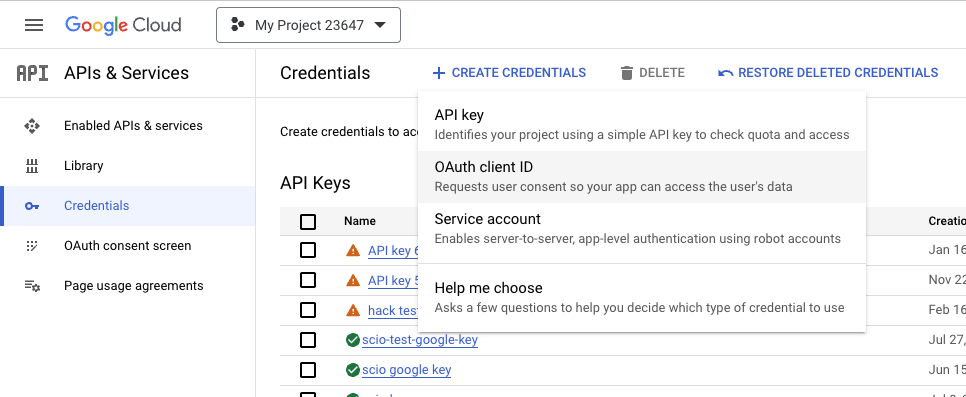
Access the Google Cloud Console Credentials page
-
Create OAuth credentials:
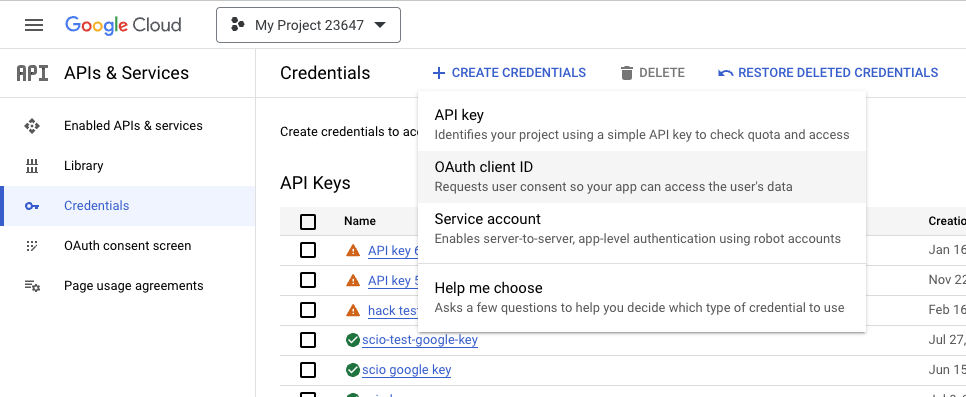
-
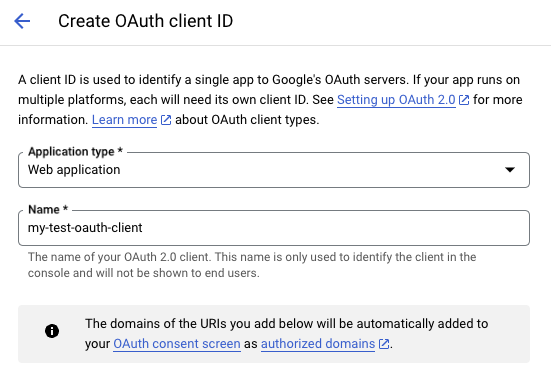
Configure as a web application:
Redirect URI Configuration
Add this URI to your OAuth client (Note your instance name is typically the email domain without the TLD):
https://{instance-name}-be.glean.com/tools/oauth/verify_code
This URL can be copied from the Callback URL field in your action's Authentication section.
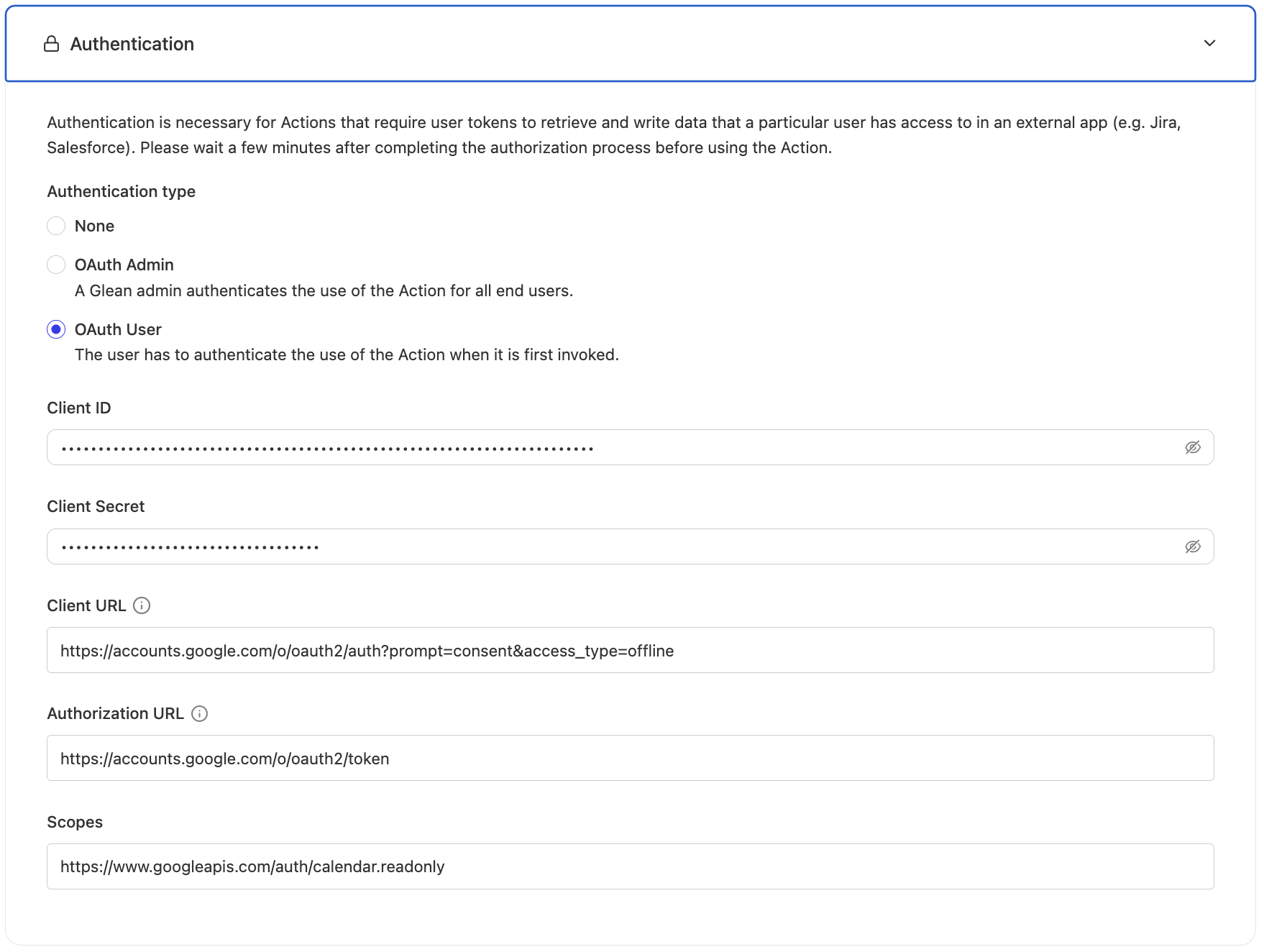
OAuth Settings in Glean
Configure these parameters in Glean:
Client URL: https://accounts.google.com/o/oauth2/auth?prompt=consent&access_type=offline
Authorization URL: https://accounts.google.com/o/oauth2/auth
Token URL: https://accounts.google.com/o/oauth2/token
Scopes: https://www.googleapis.com/auth/documents
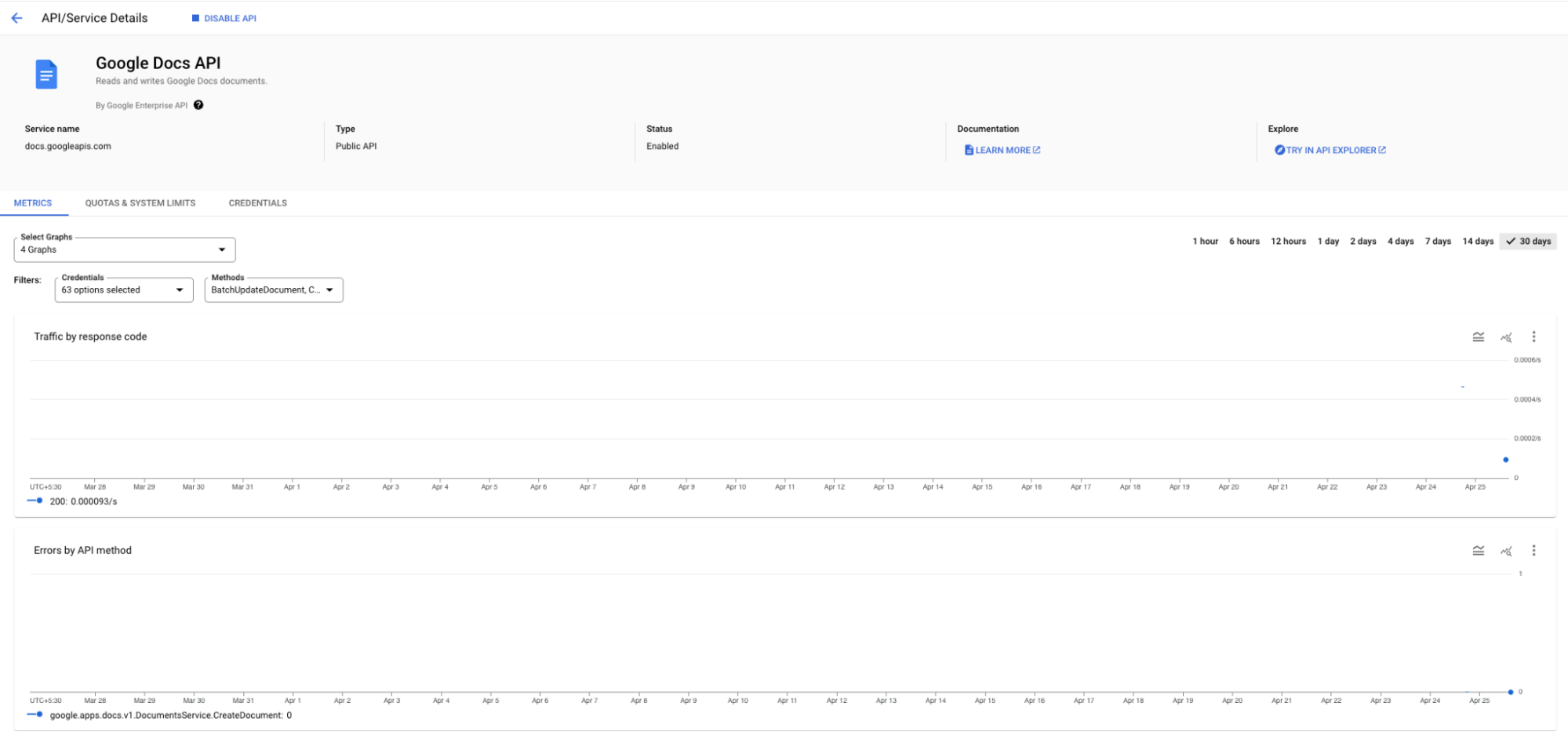
Enable Google Docs API
-
Access your Google Cloud Console
-
Enable the Google Docs API for your project:
Testing and Deployment
After configuration, thoroughly test the action before deployment.
Testing Process
-
Click the testing URL provided after saving the action
-
Issue test queries to verify proper triggering
-
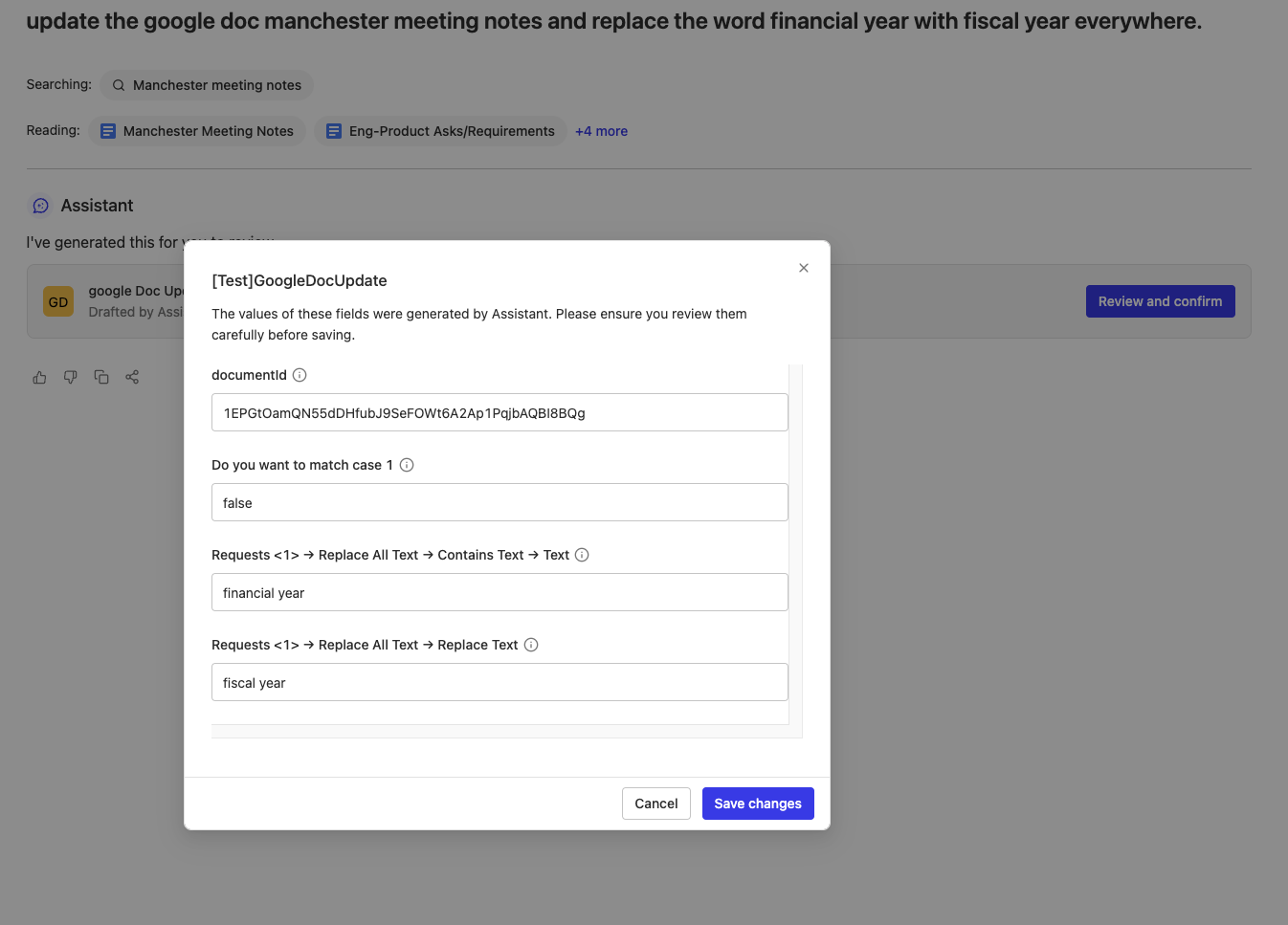
Use the "Review and confirm" interface:
-
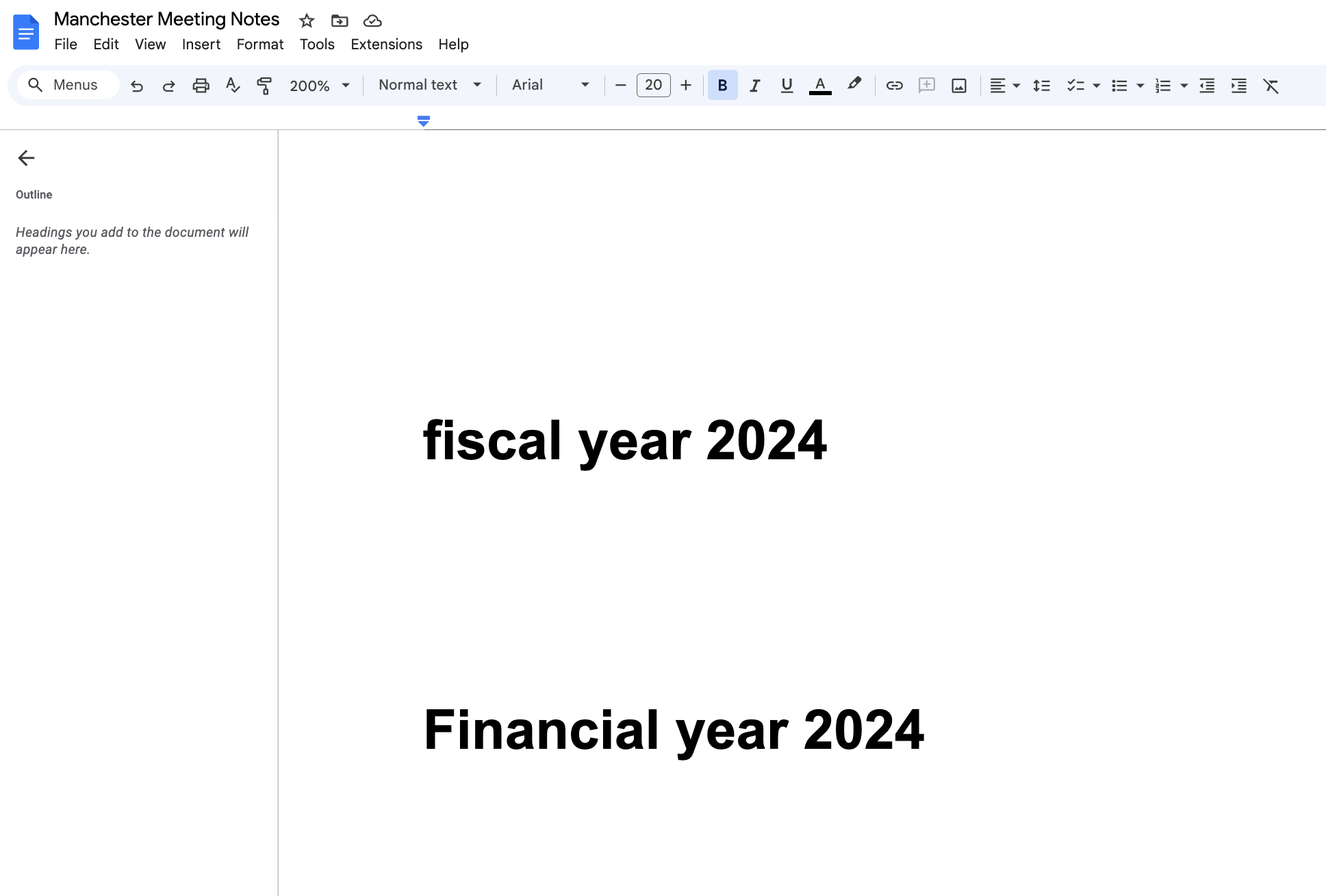
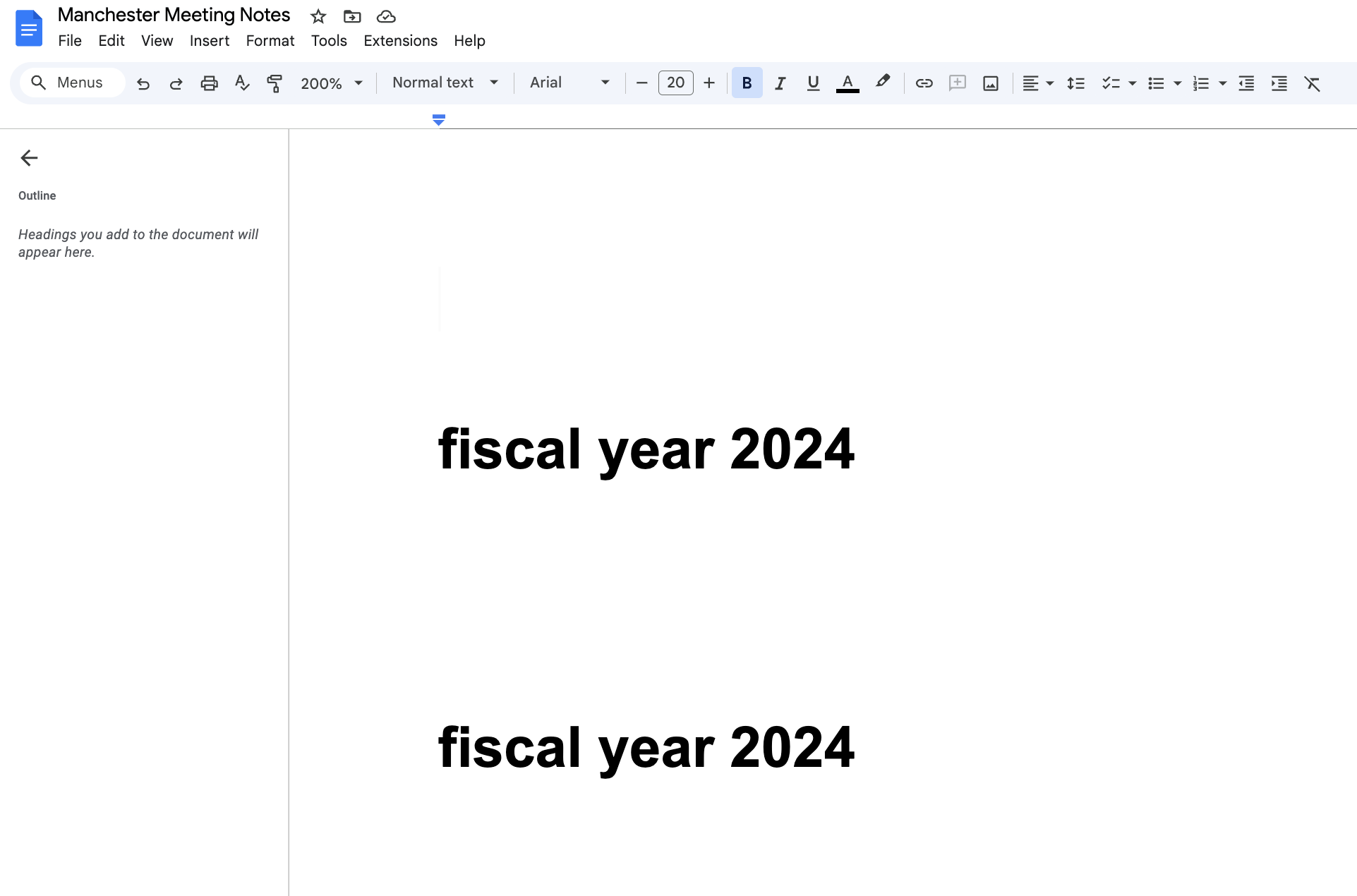
Verify document changes:
Before changes:
After changes:
Deployment Configuration
Deploy the action through the deploy tab:
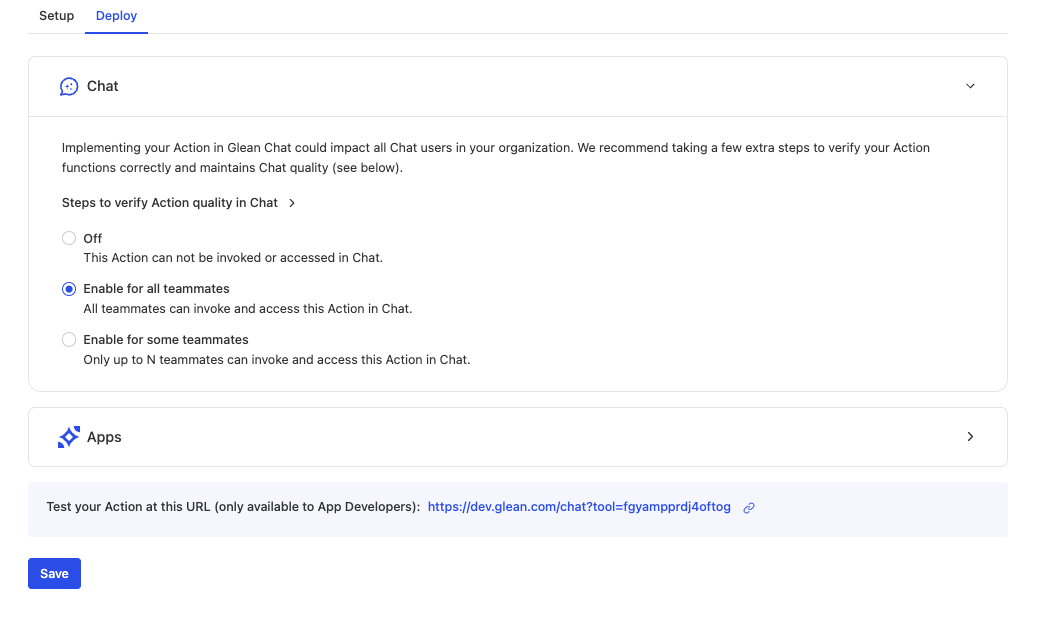
You can:
- Enable the action for all teammates
- Restrict access to specific teammates
- Configure deployment settings for Chat or AI Apps integration
Best Practices
API Configuration Best Practices
When preparing your OpenAPI specification for Google Docs integration:
Field Descriptions
The quality of field descriptions significantly impacts Glean Assistant's ability to populate them correctly. Consider these guidelines:
- Make descriptions actionable and specific
- Include examples of valid values
- Explain the business context of each field
- Clarify relationships between fields
Schema Structure
Your schema structure affects how Glean Assistant interprets the API:
- Keep the schema as flat as possible
- Use meaningful field names that reflect their purpose
- Leverage built-in formats (like
date-time) where applicable - Include proper type constraints and validations
Authentication Considerations
OAuth Configuration
Important considerations for OAuth setup:
- Always use
access_type=offlineto enable refresh tokens - Include appropriate error handling for token expiration
- Consider implementing token rotation for security
- Monitor token usage and implement proper logging
Performance Optimization
User Experience
Optimize the action for user interaction:
- Provide clear feedback when the action is processing
- Include meaningful error messages
- Allow users to preview changes before applying them
- Maintain consistent behavior across different document types
Efficient Operations
Ensure efficient operation:
- Batch related operations when possible
- Implement appropriate timeouts
- Cache frequently used document metadata
- Monitor action execution times
Error Handling
When working with the Google Docs API:
Document Operations
Choose the right operation type for your use case:
- Use
insertTextfor adding new content without affecting existing text - Use
replaceAllTextwhen you need to modify existing content - Consider using
index: 1for insertions to maintain consistent behavior - Handle formatting through plain text markers (like asterisks for bullets)
Common Issues
Common issues to watch for:
- Document permissions mismatches
- Rate limiting constraints
- Invalid document IDs
- Concurrent modification conflicts
Common Pitfalls to Avoid
Watch out for these common implementation mistakes:
-
Document ID Handling
- Not properly extracting IDs from URLs
- Failing to validate ID format
- Not handling shared drive documents correctly
-
Permission Issues
- Insufficient OAuth scopes
- Missing document-level permissions
- Incorrect service account configuration
-
Content Formatting
- Ignoring existing document structure
- Not handling special characters properly
- Incorrect handling of line breaks and paragraphs
Troubleshooting
If you encounter issues during setup or execution:
-
Verify OAuth Configuration
- Check OAuth credentials are correctly configured
- Ensure the Google Docs API is enabled
- Validate that the redirect URI exactly matches your action's configuration
-
Check Permissions
- Verify the user has appropriate permissions in both Glean and Google Docs
- Confirm document access permissions
- Check API quota and rate limits
-
Debug Implementation
- Validate document ID extraction and formatting
- Test with different document types and sizes
- Monitor API response codes and error messages
Next Steps
After successful implementation, consider:
- Documentation: Creating documentation for end users
- Monitoring: Setting up monitoring for action usage
- Credentials: Establishing a process for maintaining OAuth credentials
- Reviews: Planning for periodic reviews of API specifications as the Google Docs API evolves
- Enhancements: Expanding functionality based on user feedback